
High Availability with Geographic Redundancy
DZS service orchestrator supports Geographic Redundancy between two geographically distinct Launchpad installations.
Note: In release 8.1.1, the Configuration Generation Number (CGN) displayed on the REDUDANCY: STATUS page no longer reflects the NS artefact additions and deletions during LCM actions. Syncing does occur in the backend using the package ID but the changes are not reflected in the CGN.
To enable Geographic Redundancy, the DZS Cloud Orchestration Launchpad is installed at two sites as separate instances and then the sites are configured as backups of each other. Prior to configuring high availability, you must configure DZS Cloud Orchestration for Geographic Redundancy. See Configure DZS Cloud Orchestration for Geographic Redundancy.
Once configured for Geographic Redundancy, the Launchpad replicates configuration between the sites and initiates a Geographic Redundancy failover directly or indirectly in response to a DNS update. The Launchpad performs a failover when it detects a problem with the ACTIVE Launchpad and the DNS updates based on the state change.
Configure High Availability through the UI
Note: Prior to configuring High Availability, you must Configure DZS Cloud Orchestration for Geographic Redundancy.
-
On the Launchpad Dashboard menu, click ADMINISTRATION > REDUNDANCY to add and configure two sites and update the status.
-
Click SITES.
-
Click ADD SITE at the bottom of the screen.
-
On the SITES tab, provide details for LP1 (fields with * are required).
SITE INFO
-
NAME* - Site name.
Note: In the below example, the Site Info Name matches the Client Name in the Configure openidc-provider-configure for Geographic Redundancy on both Launchpads section in Configure DZS Cloud Orchestration for Geographic Redundancy.
-
FQDN / IP ADDRESS- the FQDN resolves to this IP address
DZS Cloud Orchestration INSTANCES
-
NAME- Set the name to the value set for SYSTEM NAME configured in the Set up a System Name for each Launchpad section in Configure DZS Cloud Orchestration for Geographic Redundancy.
Note: In order to configure two sites, you need the values from both Launchpads.
-
FLOATING IP- Floating IP of the Launchpad corresponding to the site being configured.
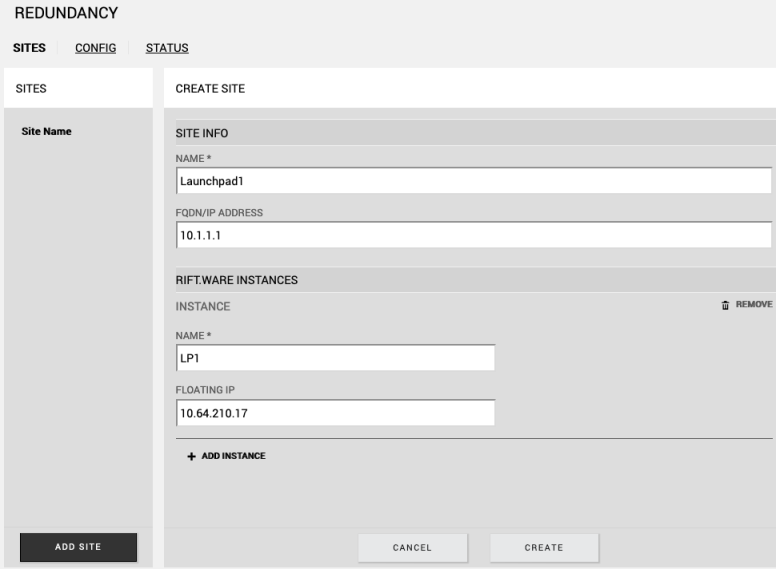
-
- Click Create.
-
After you create LP1, it appears under Site Name.

-
Repeat steps 3-10 for Launchpad2.
-
After you create Launchpad2, it appears under Site Name.

Note: Steps 9 through 12 must be done on both Launchpad sites.
-
Click CONFIG to provide details to configure Geographic Redundancy.
-
DNS FQDN / IP ADDRESS- for example,
rift.so.eng.net.com -
PREFERRED SITE INPUT- This is the Site Name. When configured, the Site Name is used as the first preference to break a tie between Launchpad instances running on the sites.
-
FEDERATION ID- This is the Federation ID. This is a required field.
-
POLLING INTERVAL(S)- Polling intervals defined in seconds.
-
ELECTION TIMEOUT (S) - Election process timeout value defined in seconds for both Launchpads prior to timing out. The Launchpad either becomes ACTIVE or goes into a tiebreak based on the reachablity status of the peer.
-
TIE BREAK TIMEOUT (S) - Tie break timeout value defined in seconds. If a timeout occurs, then the tie break is based upon the PREFERRED SITE INPUT and DNS FQDN / IP ADDRESS configuration.
-
CONFIG LOAD TIMEOUT (S) - Timeout value defined in seconds that the HAGR state machine waits for the configuration to load prior to taking over as ACTIVE from STANDBY. If it does not complete within the time, then the operator must manually change the state.
-
SPLIT BRAIN RESOLUTION TIMEOUT (S) -Timeout value defined in seconds that the Lauchpad waits for synchronization when both Launchapd nodes are detected in the ACTIVE state. This could happen after a network partition heals but it depends on the preffered-site configuration. Default value: 60 seconds
-
MANO PACKAGE SYNC WAIT TIMEOUT (S) - Timeout value defined in seconds that the Launchapd waits to push changes from ACTIVE to STANDBY. An operator might need to change this value form the default if the Launchpadis running slowly on a machine. Default value: 30 seconds
-
FULL STATE RESYNC TIME PERIOD(S) -Timeout value in seconds after which the STANDBY Launchpad performs a full package download from the ACTIVE Launchpad. Default: 3600 seconds
-
CONFIG PUSH BULK WAIT TIME(S) - Timeout value in seconds that Launchpad waits after a configuration change occurs to see if more configuration changes are received. If no more changes are received, then the changes are batched. Default: 5 seconds
-
NO RESPONSE COUNTER- The number of consecutive polls from the STANDBY Launchpad to the ACTIVE Launchpad that are either not responded to (for example, timeout) that will trigger the beginning of a switchover event.

-
Click UPDATE.
-
On the REDUNDANCY page, click STATUS. The status of each DZS Cloud Orchestration instance is listed in the HEALTH STATUS panel.
-
Once Geographic Redundancy is ready on both Launchpads, select the PAIR command in the ACTIONS column and click EXECUTE.
Note: After Geographic Configuration is ready on both Launchpads, do not run any other commands until parring is established. The command should only be run when both Launchpad instances are in the ACTIVE_PAIR state. Once the action is completed successfully, the Launchpad instances settle on ACTIVE and STANDBY respectively.
The PAIR command must be run on the Launchpad that the operator wants to become STANDBY. It only needs to be run once. It can be executed from either of the two Launchpads. After pairing is successfully established, the Launchpad where this command is running becomes STANDBY.

ELECTION-TIEBREAK CONFIG
POLLING CONFIGURATION
The other possible actions are:
-
ACTIVE: This command changes the Launchpad instance running on that site to transition from STANDBY to ACTIVE by completing a graceful switchover. This is the preferred method to perform an intentional failover. This method ensure that the STANDBY instance has the latest configuration downloaded from the ACTIVE instance. After the STANDBY instance takes over the role of ACTIVE, the current ACTIVE Launchpad reboots automatically and it will come up as the STANDBY instance.
Note: Only use this command on the site where the Launchpad instance is running in the STANDBY state.
-
STANDBY: This command changes the Launchpad instance running on that site to transition from ACTIVE to STANDBY by completing a graceful switchover. This is preferred method to perform an intentional failover. This method ensures that the ACTIVE instance has latest configuration downloaded from the the previously ACTIVE instance.
Note: Only use this command on the site where the Launchpad instance is running in the ACTIVE state.
-
SHUTDOWN: This command stops the targeted Launchpad instance and will not restart.
-
REBOOT: This command restarts the targeted Launchpad instance.
-
ERROR: This command moves the Launchpad where it is executed into an error state. It is not possible to determine the specific resolution in this state.
Important: It is not recommended to not use the ERROR command.
-
ERASE: This command cleans up all the configurations on the site where it is executed. The Launchpad instance reboots as ACTIVE_NOGR because all configurations, including the redundancy configuration, are deleted.
Note: This command breaks the Geographic Redundancy pairing and restarts the Launchpad as a new standalone instance. This Launchpad will have no knowledge about any of the previous pairings.
-
FORCE_ACTIVE: This command is the same as the ACTIVE command. It forces the Launchpad instance to go into the ACTIVE state ungracefully. The STANDBY instance will not have the latest configuration downloaded from the ACTIVE instance.
Note: Only use this command when the Launchpad is in the ERROR state or when it is stuck in the STANDBY state with no ACTIVE instance running. Do not run this command when there is an ACTIVE-STANDBY pairing running. If you use the FORCE_ACTIVE state in this scenario, then the Launchpad will go into the ERROR state.
-
FORCE_STANDBY: This command is the same as the STANDBY command. It forces the Launchpad instance to go into the STANDBY state ungracefully. The ACTIVE instance will not have the latest configuration downloaded from the STANDBY instance.
Note: Only use this command when the Launchpad is in the ERROR state or when it is stuck in the ACTIVE state with no STANDBY instance running. Do not run this command when there is an ACTIVE-STANDBY pairing running. If you use the FORCE_STANDBY state in this scenario, then the Launchpad will go into the ERROR state.
-
FORCE_SYNC: This command state in the HEALTH STATUS panel. This command syncs the entire ACTIVE state to STANDBY. If the action is performed on the ACTIVE state, then any config changes are disabled and then the sync with STANDBY is complete. The STANDBY then enables the config changes. If the action is performed on the STANDBY state, then that Launchpad downloads the package from ACTIVE
Note: When the action is performed on the ACTIVE state, then the ACTIVE ensures that the STANDBY will receive the latest package (configuration and Launchpad packages).
See Configure DZS Cloud Orchestration for Geographic Redundancy in the Installation and Deployment Guide.
|
© 2020 DZS. All Rights Reserved |
Published on 8/10/2021, 4:30 PM |